CRMstack Help Center
Using Google/Gmail/GSuite as your SMTP Provider #2
Create app-specific passwords for accounts with 2-step verification on
Important Note: Please use a VPN when trying to connect to Gmail SMTP for Users in the Philippines
Learn more about Why Can’t I use My Free Email Address As The SMTP?
1. Go to Google.com
2. Click on your icon on the top right
3. Make sure you choose the correct Google Account that you want to integrate with

4. Click on Manage your Google Account

5. Click on Security

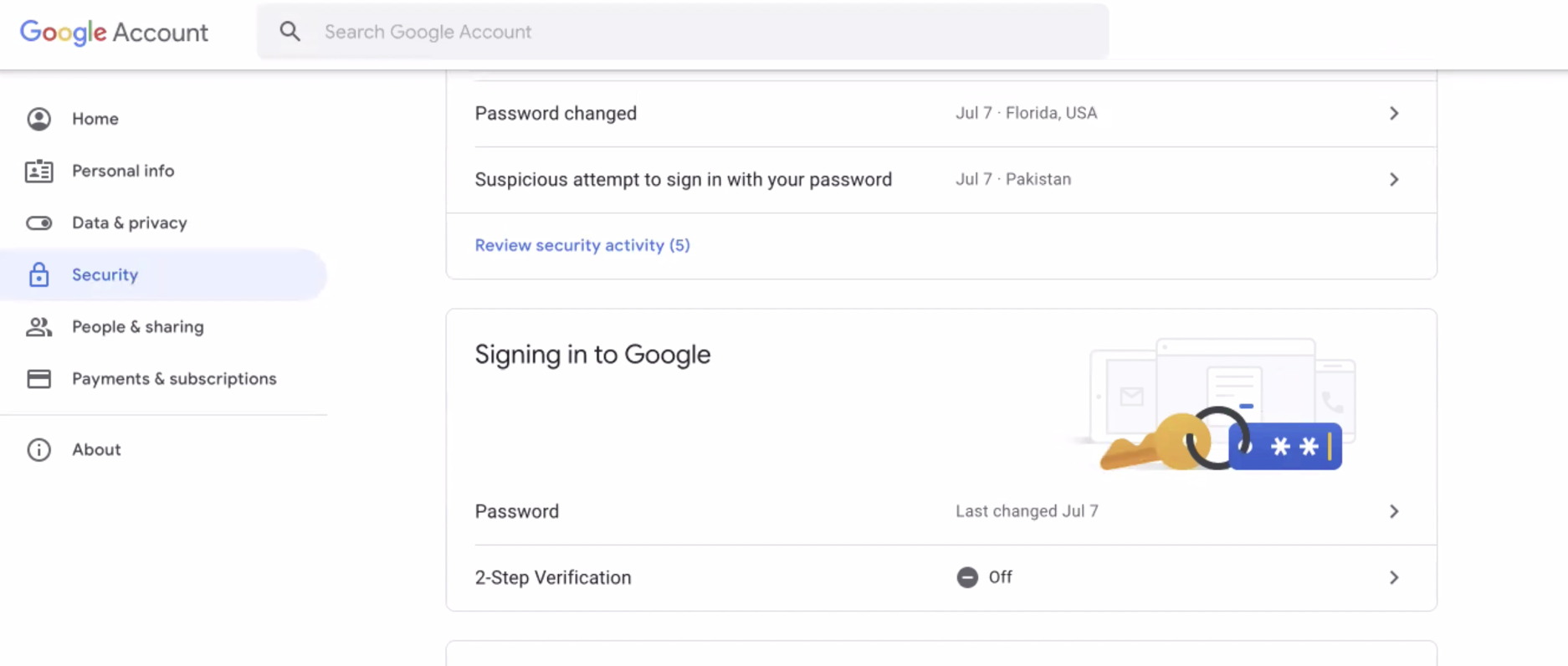
6. Scroll down further to locate the section Signing in to Google
Make sure 2-step verification is enabled. You will need to turn on 2-step verification to be able to see the App Passwords option.
If 2-step verification is missing, that means the option to allow users to turn on 2-step verification is off in Google Admin. Please contact the Gsuite admin to follow this article to enable the option.

7. Once 2-step verification is enabled, Click on App passwords
Make sure the right email is selected from the dropdown
Type password
Click on Next

8. Select the app and device you want to generate the app password for:

9. Click on Other (Custom name) and name it SMTP integration (anything works)

10. Click on GENERATE

11. Drag to copy the highlighted text and paste it as the password when integrating Gmail SMTP

12. On the top left
Once you are in your account
Click on Settings at the bottom left
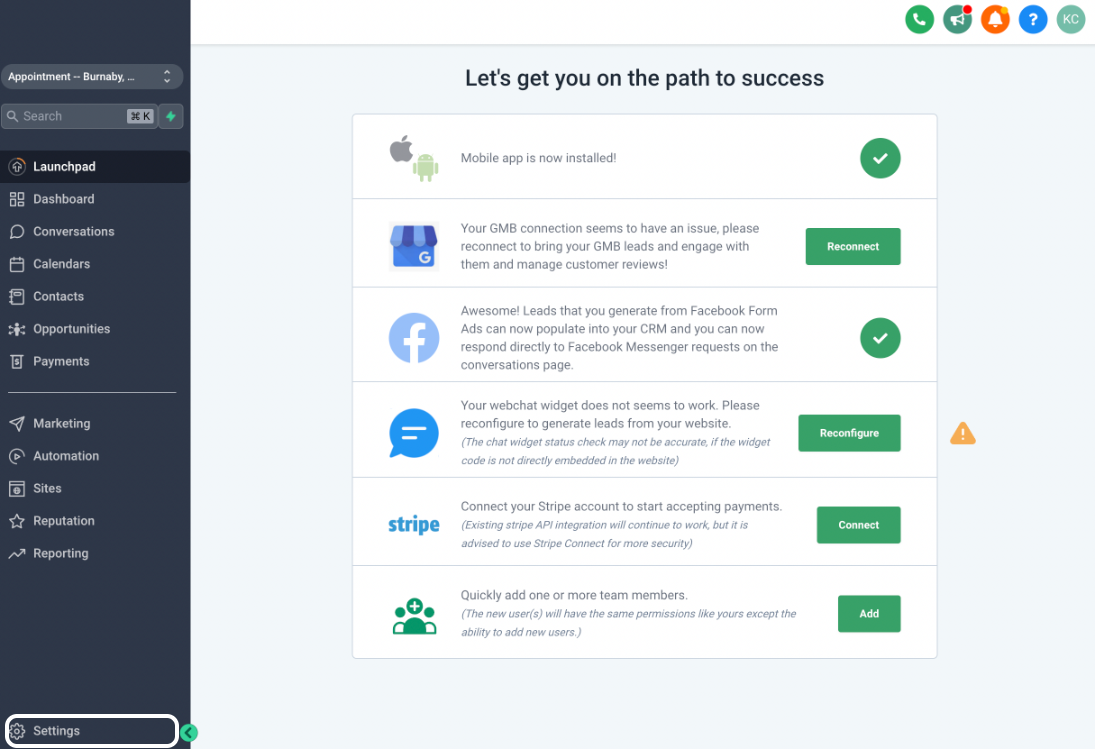
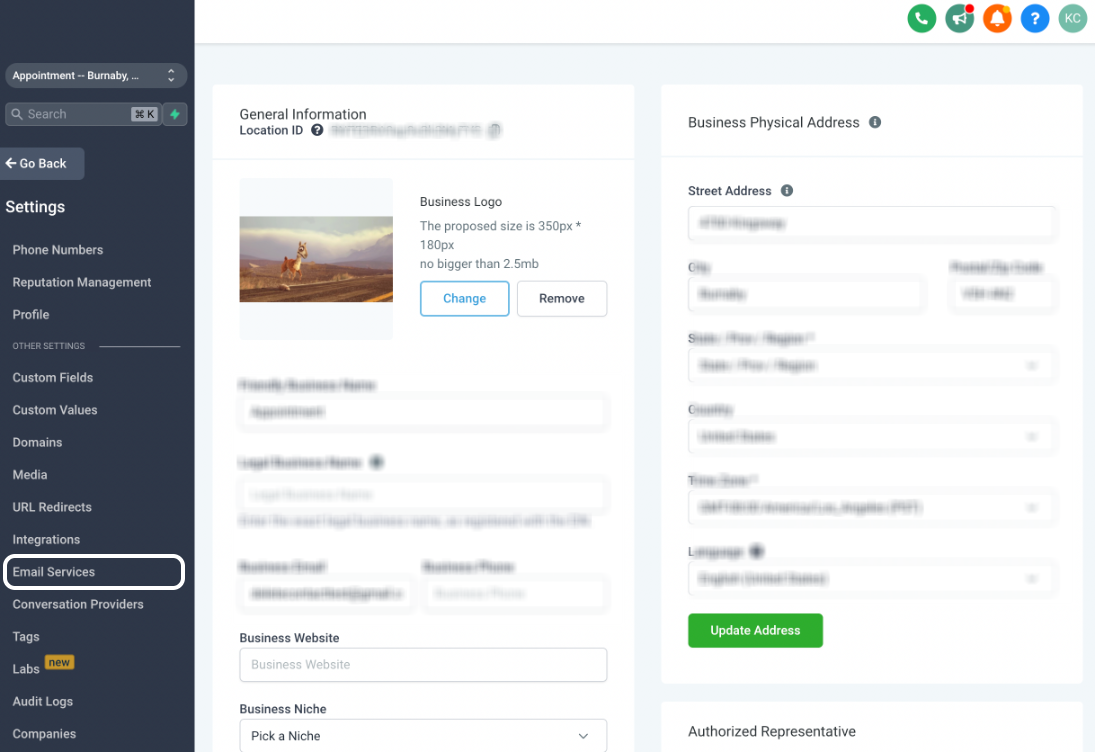
14. Scroll further on the sidebar menu to Click on Email Services
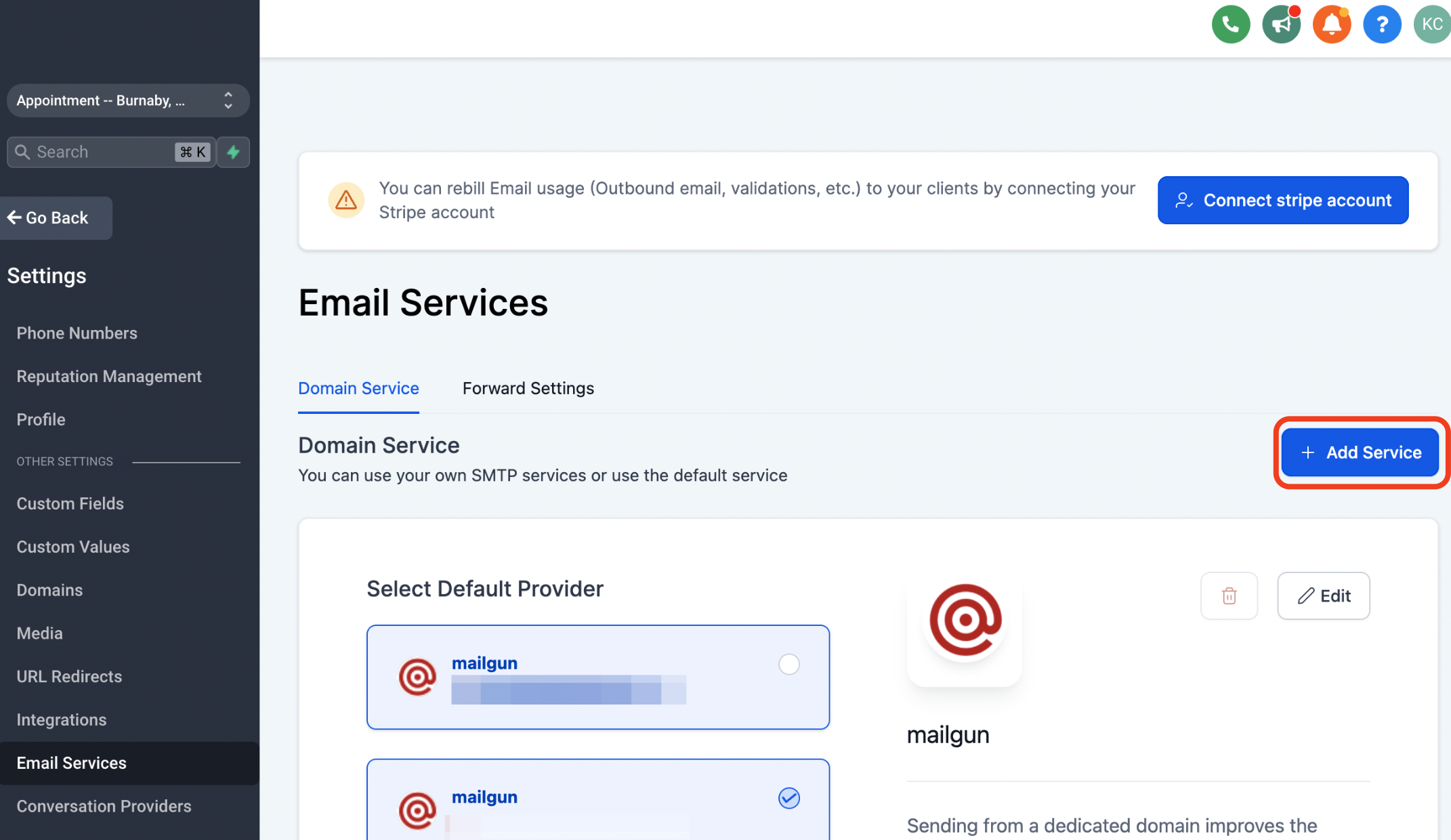
15. Click on Add Service on the top right
16. Click on the dropdown to Select Provider > Select Gmail
Paste the copied App Password that we generated just now in the Password field:
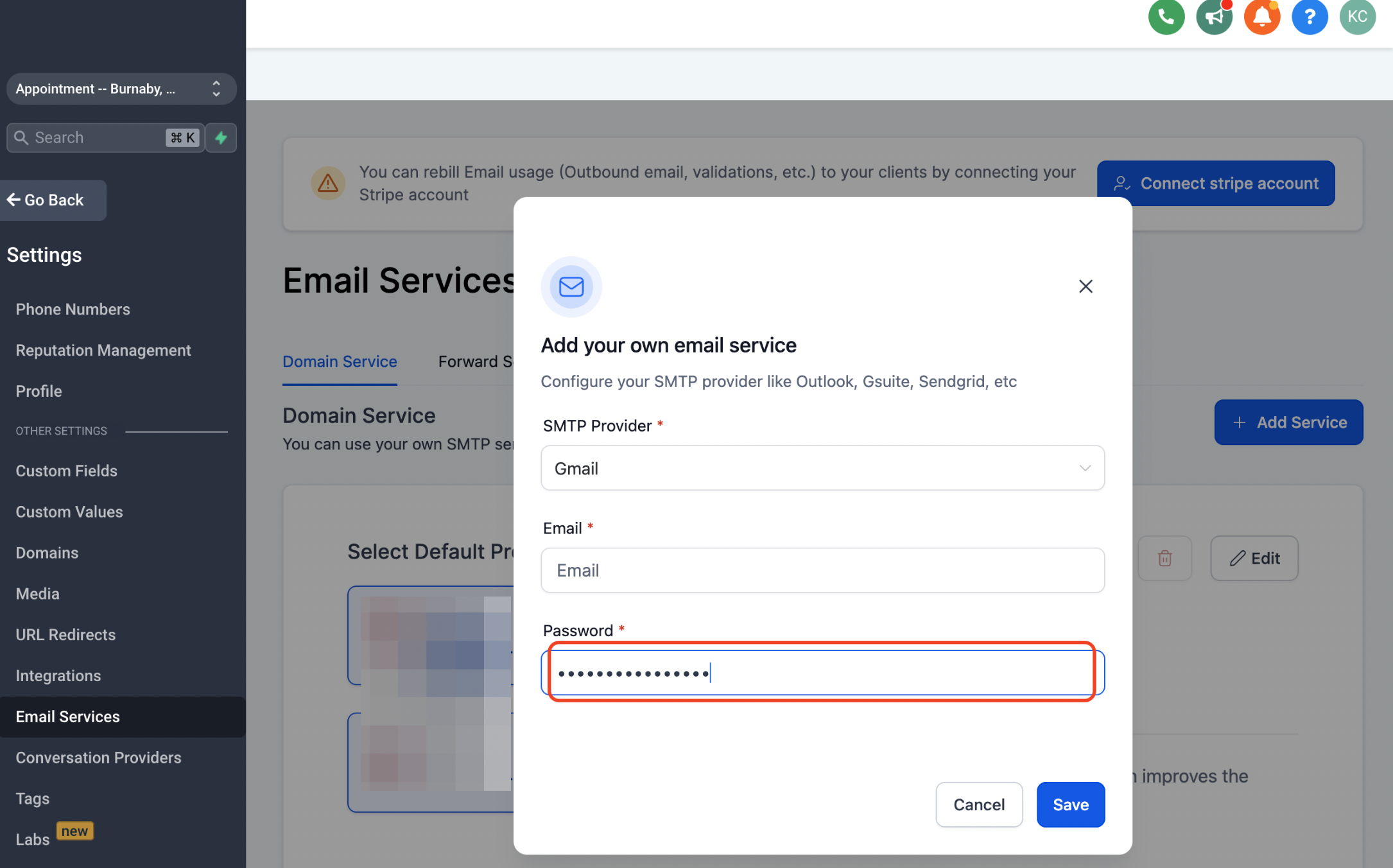
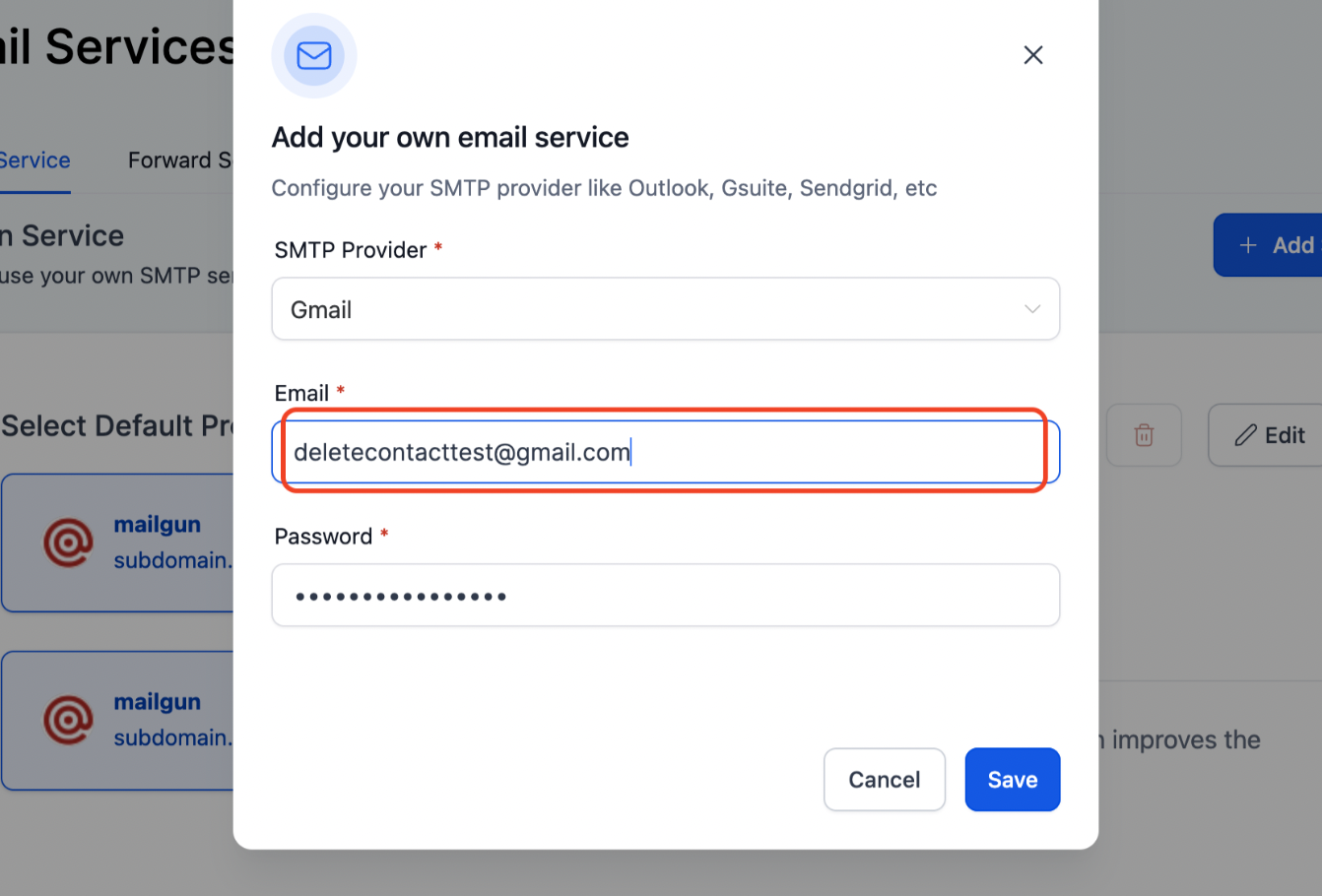
17. Enter the your Gmail Login Email and click Save, done!
How to enable 2-step verification:
1. Go to Google.com
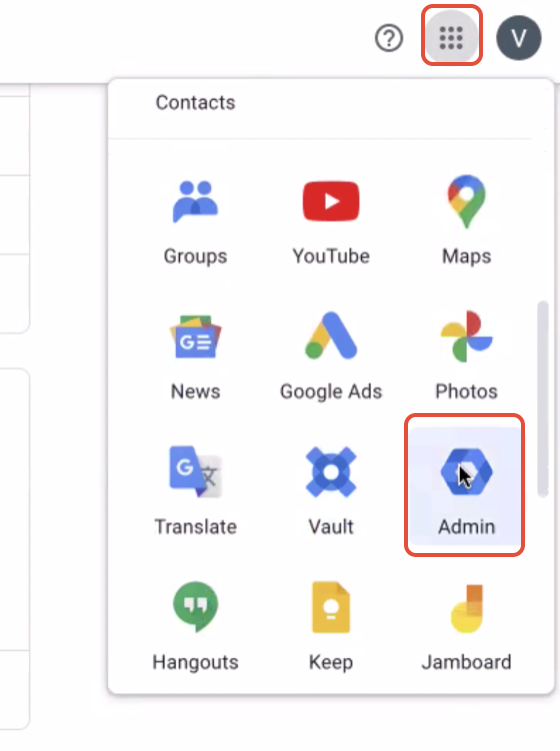
2. Click on the 9 dots menu here on the top right
3. Scroll down to click on Admin
Go to the Main menu on the top left
Click on Security > Authentication > 2-step verification

Make sure that the option to Allow users to turn on 2-Step Verification is enabled

Refresh the manage your Google account page to see if 2-Step Verification shows up now: