
CRMstack Help Center
How to Set Up a Dedicated Sending Domain (LC Email)
Email marketing is a great way to reach customers and increase sales. But if you’re not careful, you could end up in trouble. A dedicated sending domain gives you control over what appears to be coming from your business. That means you can avoid spam filters and other issues that might get your messages caught by unwanted mail servers.
Don’t let your email marketing efforts go unnoticed! Get started right away with a dedicated sending domain.
Please Note:
Dedicated sending domains are only applicable to the users using the LC – Email system.
If you are using a new domain that has never been used for email please make sure to warm up your domain before emailing to a large list. Failure to do so will results in poor deliverability results.
Here are instructions for common DNS providers:
What is a Dedicated sending domain?
A dedicated sending domain allows you to send emails that appear to be coming from your brand, which can help you maintain a better reputation with email services. Any sub-account or agency can create a dedicated sending domain, and it’s quick and easy.
By default, all emails sent from our platform will show the name of our email-sending servers in the “sent on behalf of” or “sent via” email headers:
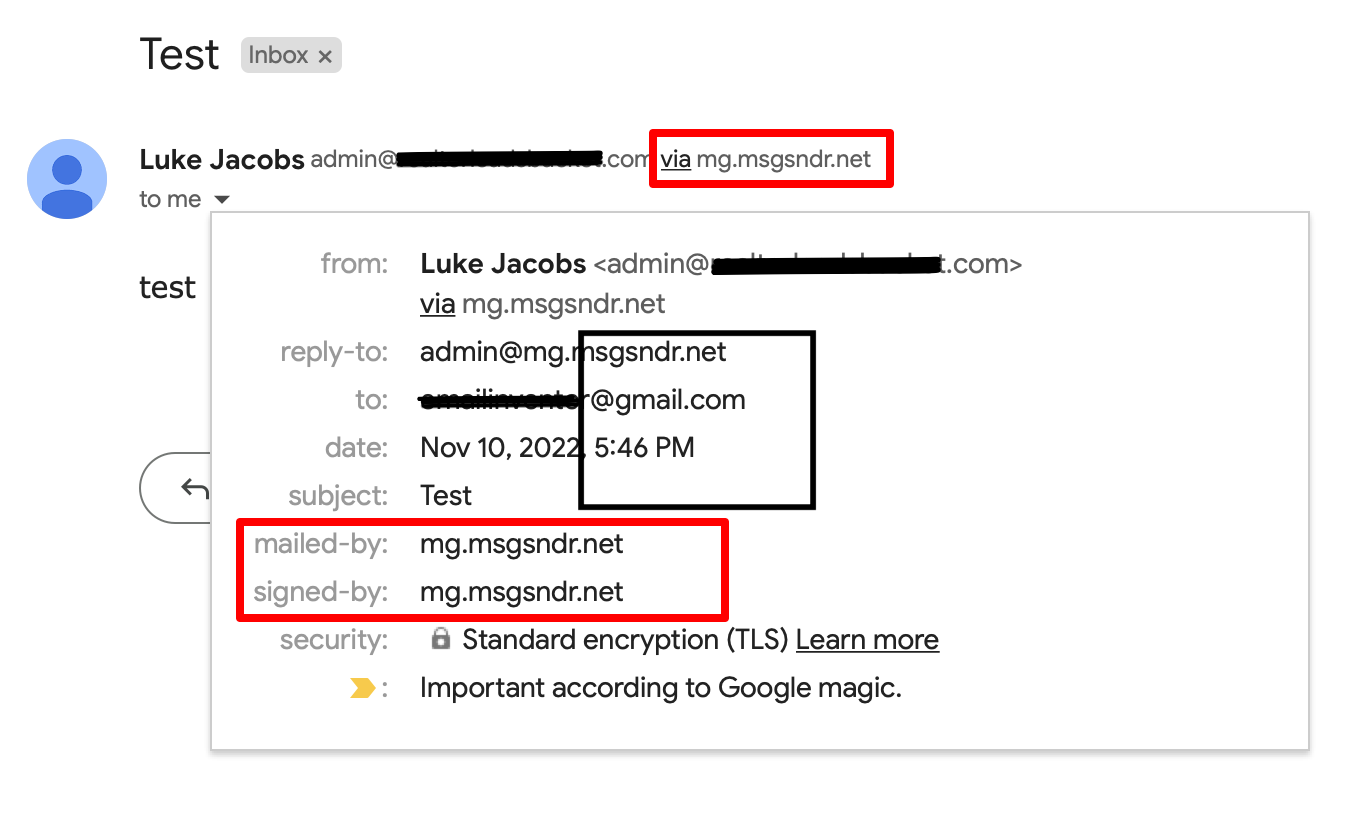
If your sending domain is listed below, you are using the LC Email system default domains.
- mg.msgsndr.org
- mg.msgsndr.net
- replies001.msgsndr.com
- replies.msgsndr.com
- replies000.msgsndr.com
- ec1.msgsndr.org
- ec1.msgsndr.net
When you set up your own custom mail server domain, you will see a different “mailed-by,” “sent on behalf,” or “sent via” field.
How to choose a sending domain name for my account?
It would be best if you used a unique subdomain that is not used for any other purpose. A subdomain is a secondary part of your root domain. For example, if your dedicated sending domain is hello@mg.yourbrand.com, your subdomain would be the “mg” portion.
How to create a dedicated sending domain?
You can create multiple sending domains under your account and make one active.
- Navigate to Settings – > Email settings – > Email Services
- If you are in the LC email system, you can find the Dedicated domain button. Please switch to the LC email system to create a custom sending domain.
- Click the ‘Dedicated domain‘ button.

- Add your domain details.
Here are instructions for common DNS providers:
Note:The propagation process can take up to 24 hours. If it has been longer than 24 hours please double-check your DNS settings by following the process above
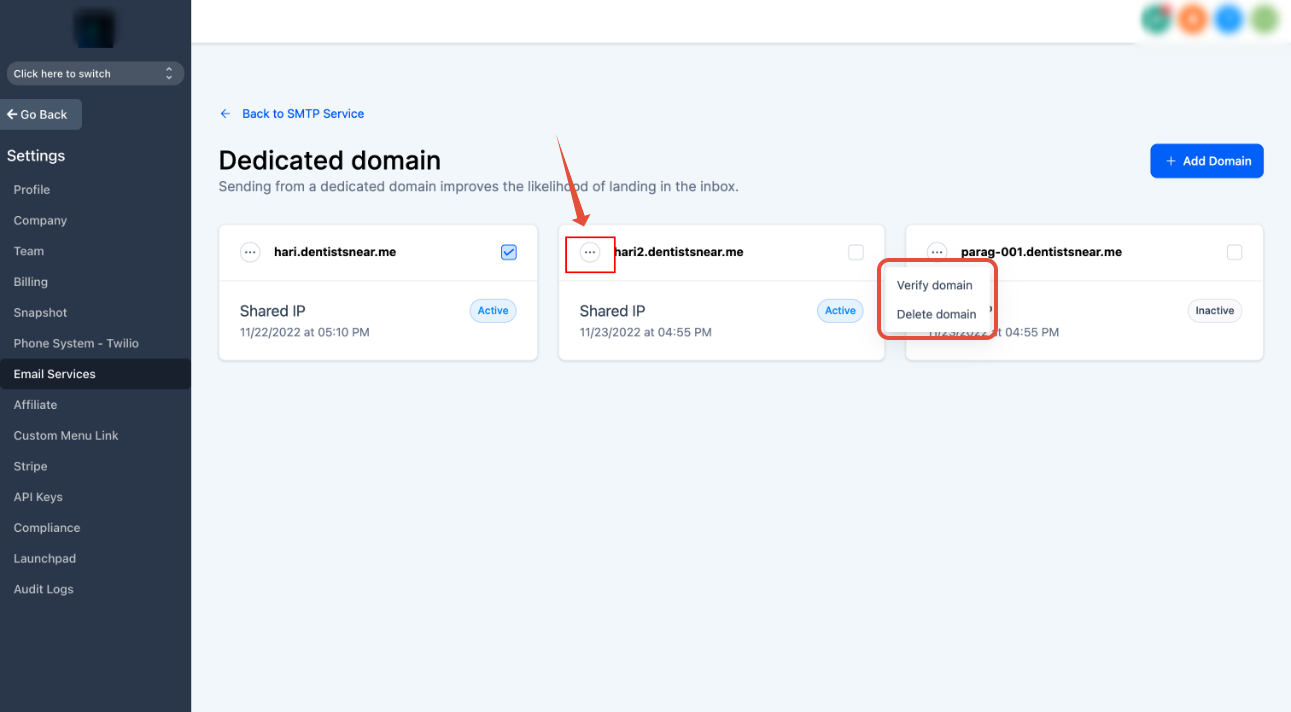
- Verify Domain
Apply your new DNS records to your company’s DNS provider’s platform to activate the sending domain. Every domain host will have a slightly different method of doing this.
How to set up a dedicated sending domain for notification emails?
You can a sending domains under your account only for notification emails like Sub-account / User created.
- Navigate to Settings – > Email settings – > Email Services
- If you are in the LC email system, you can find the Dedicated domain button. Please switch to the LC email system to create a custom sending domain.
- Click the ‘Dedicated domain‘ button.
- Add your domain details in Notification Section.
Here are instructions for common DNS providers:
Note:The propagation process can take up to 24 hours. If it has been longer than 24 hours please double-check your DNS settings by following the process above
- Verify Domain
Apply your new DNS records to your company’s DNS provider’s platform to activate the sending domain. Every domain host will have a slightly different method of doing this.
